What Is Two-Factor Authentication (2FA)? A Beginner’s Guide
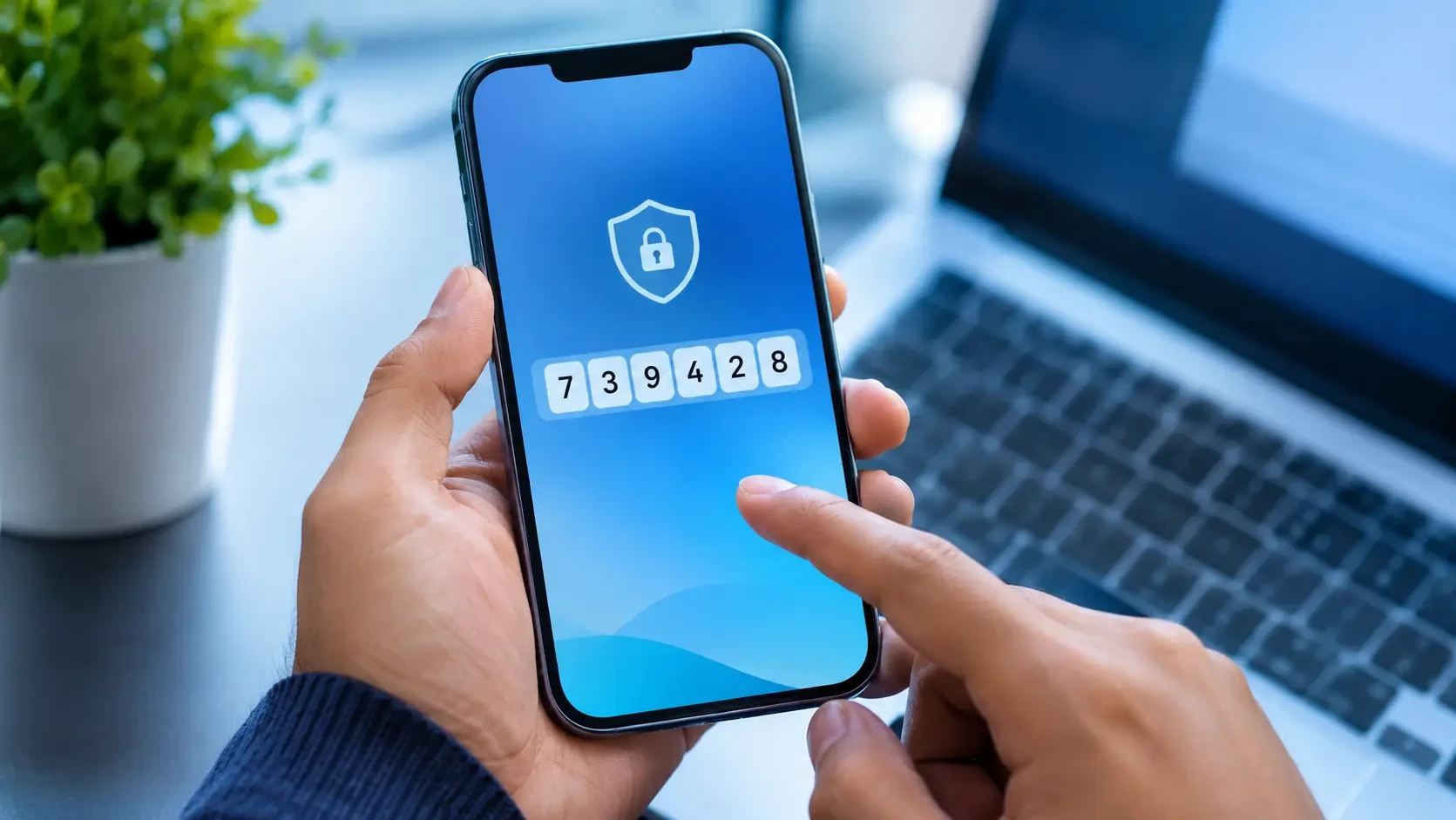
You type your password, press enter — and then your account asks for a six-digit code. That extra step is two-factor authentication, or 2FA. It takes about ten seconds, and it is one of the simplest, most effective ways to protect your accounts.
This guide explains what 2FA is, how it works, and how to turn it on.
What Is Two-Factor Authentication?
Two-factor authentication is a way of proving who you are using two separate pieces of evidence instead of one.
A password alone is one factor: something you know. 2FA adds a second factor, which is usually one of these:
- Something you have — your phone, a security key, or an authenticator app.
- Something you are — your fingerprint or face.
When you sign in with 2FA on, you enter your password as usual, then prove the second factor — for example, by typing a six-digit code from an app on your phone. An attacker with your password still cannot get in without your phone.
One stolen password should not be enough to take over your account.
Why Passwords Alone Are Not Enough
Passwords fail in ways that have nothing to do with how clever yours is:
- Data breaches. When a website is hacked, millions of passwords leak at once — and every account sharing a reused password is exposed.
- Phishing. A fake login page that looks exactly like the real one tricks you into typing your password yourself.
- Guessing and reuse. People reuse passwords across sites, and attackers test stolen passwords on other services automatically.
2FA does not make your password stronger — it makes it less important, because the password alone is no longer enough.
How 2FA Works, Step by Step
The most common form is a time-based one-time password (TOTP). Here is how it works:
- You turn on 2FA in your account’s security settings and choose an authenticator app.
- The service shows you a QR code (and a text secret key). Your authenticator app scans it, and your phone and the service now share that key.
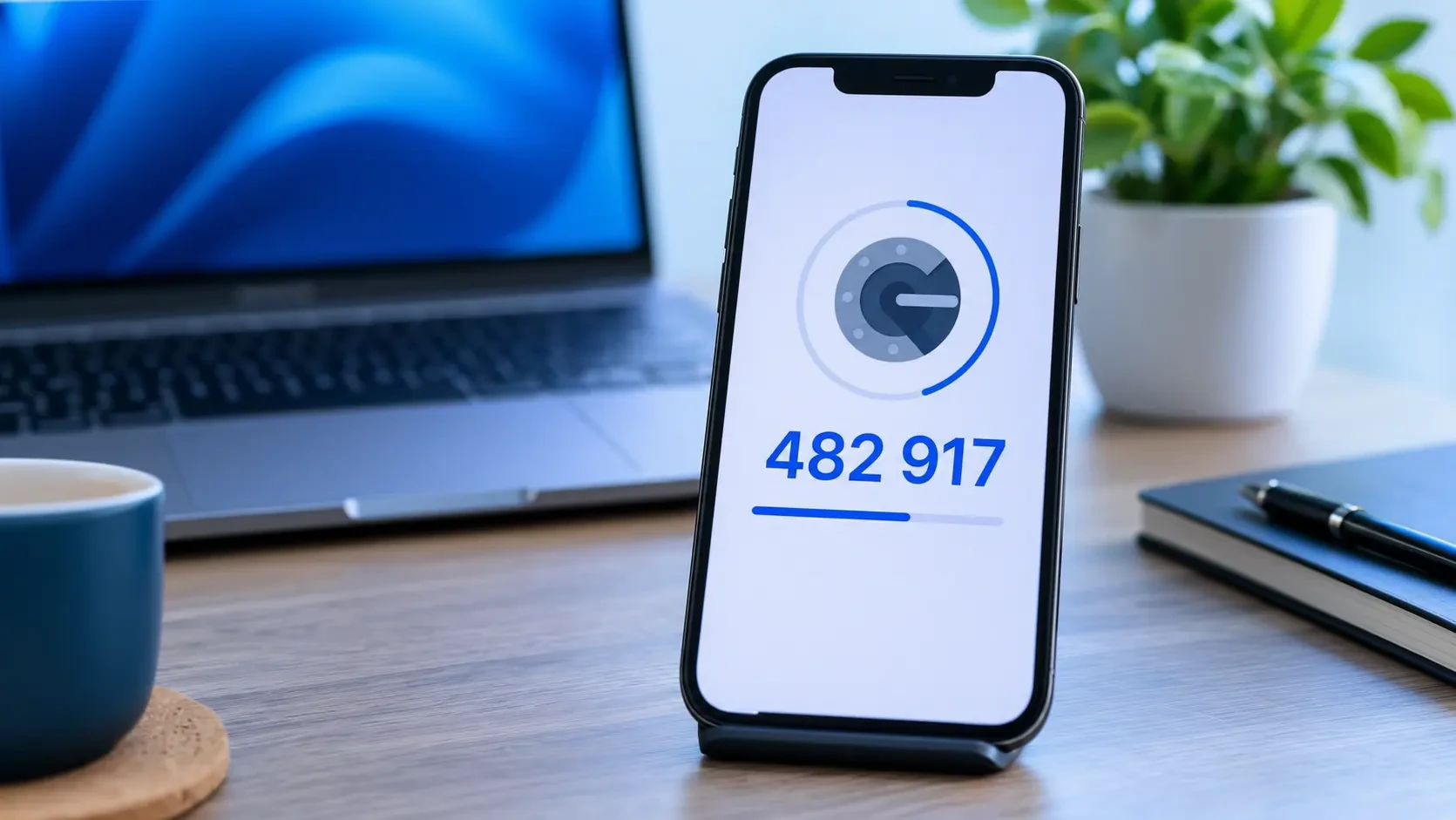
- When you sign in, your authenticator app combines that secret key with the current time and generates a six-digit code. The code changes every 30 seconds.
- The service runs the same calculation on its side. If the code matches, you are in.
Because the code is based on time, it expires quickly — a code stolen five minutes ago is already useless. And because the secret key never leaves your device, the service never needs to send you anything.
This method is defined by an open standard called RFC 6238, which is why the same authenticator app works with Google, Facebook, GitHub, Amazon, and thousands of other services.
The Main Types of 2FA
Not all second factors are equal. Here are the ones you will meet most often:
Authenticator Apps (TOTP)
An app on your phone generates a six-digit code every 30 seconds. This is the most common method and the best balance of security and convenience: it works offline, and the codes are never sent over the internet.
You can also generate TOTP codes in your browser. For example, if a service shows you a secret key during setup, you can paste the secret key into 2Fakey — try it free on 2Fakey — https://2facc.com/ — and get your codes instantly, with nothing to install.
SMS Codes
The service texts a code to your phone. This is better than no 2FA at all, but it is the weakest option — texts can be intercepted, and attackers can trick carriers into moving your number to their SIM (SIM swapping). Choose the app when you can. For a full comparison, see TOTP vs SMS 2FA: Which One Is Safer?.
Security Keys
A small USB or NFC device you tap when signing in. Security keys are the strongest form of 2FA because they verify the real website address and cannot be fooled by a fake login page.
Push Notifications
Some apps send an “Approve this sign-in?” prompt to your phone. You tap Approve or Deny. It is convenient, but attackers sometimes send repeated prompts hoping you tap Approve just to make them stop.
Which Accounts Should You Protect First?
Start with the accounts that unlock everything else:
- Your email. Password resets for almost every other service go to your email. If someone controls your inbox, they can reset everything.
- Your bank and payment apps. Obvious, but often skipped.
- Your social media accounts. These are common targets for scams and impersonation.
- Cloud storage and password managers. They hold your files and your other passwords.
- Work accounts. Your employer may already require it.
Then add the rest a few at a time.
How to Turn On 2FA
The steps are similar on almost every service:
- Open your account settings and look for Security (sometimes called “Sign-in & security” or “Password and security”).
- Find Two-factor authentication or 2-Step Verification and turn it on.
- Choose authenticator app as your method.
- Scan the QR code with your authenticator app — or copy the secret key and paste it into a generator like 2Fakey.
- Enter the six-digit code to confirm it works.
- Save your backup codes. The service will show you a list of one-time backup codes. Store them somewhere safe, like a password manager or a printed page in a drawer.
That last step matters more than people think. Without backup codes, losing your phone can mean a long recovery process — or a permanently locked account. Read our guide on lost phone 2FA recovery before you need it.
The Bottom Line
Two-factor authentication means your password is no longer the only thing standing between an attacker and your account. An authenticator app works offline, is free, and takes minutes to set up — start with your email today.
Frequently Asked Questions
Is two-factor authentication really necessary?
Yes, for anything that matters. Passwords leak in data breaches every year, and 2FA blocks the most common way stolen passwords are used.
What happens if I lose the device with my authenticator app?
That is what backup codes are for. Save the codes the service gives you at setup; if you lose your phone, use one to sign in, then set up 2FA again on your new device.
Does 2FA work without internet?
Authenticator apps generate codes on your device, so they work fully offline. SMS codes need mobile reception.
Set up 2FA on your most important account today — and generate your codes free with 2Fakey at https://2facc.com/.