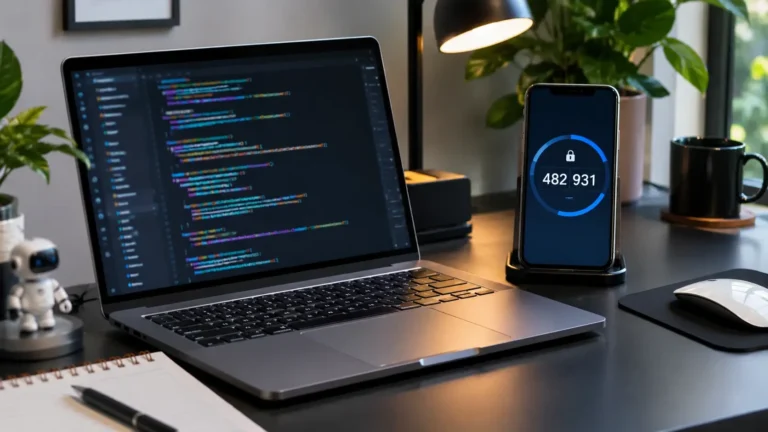
How to Turn On Two-Factor Authentication on Facebook

Facebook accounts are a favourite target for attackers. A hacked account can be used to scam your friends or lock you out — and recovery is slow. Two-factor authentication (2FA) stops most of these attacks: even with your password, an attacker cannot sign in without the six-digit code from your phone.
This guide shows you how to turn on Facebook two-factor authentication using an authenticator app, the most reliable method. It takes about five minutes.
If you are not sure what 2FA is yet, our beginner’s guide explains what two-factor authentication is.
Before You Start
You will need: your Facebook account, signed in; an authenticator app on your phone (or a browser tab with a code generator); and a safe place to store backup codes.
If you do not have an authenticator app, you can generate codes in your browser with 2Fakey — try it free on 2Fakey — https://2facc.com/. Nothing to install, and it works offline once the page has loaded.
How to Turn On 2FA on Facebook (Computer)
- Click your profile picture in the top right and choose Settings & privacy, then Settings.
- In the left menu, open Accounts Centre (or Security and login on older layouts), then Password and security.
- Under Two-factor authentication, click the account you want to protect.
- Choose Authentication app as your method and click Next.
- Facebook shows a QR code and a text secret key.
- Open your authenticator app, tap Add account (or +), and scan the QR code. If you cannot scan it, copy the secret key and paste it into the app — or paste it into 2Fakey at https://2facc.com/.
- Enter the six-digit code your app shows you, then click Confirm.
Facebook will confirm that two-factor authentication is on. From now on, signing in from a new device or browser requires your password plus a code.
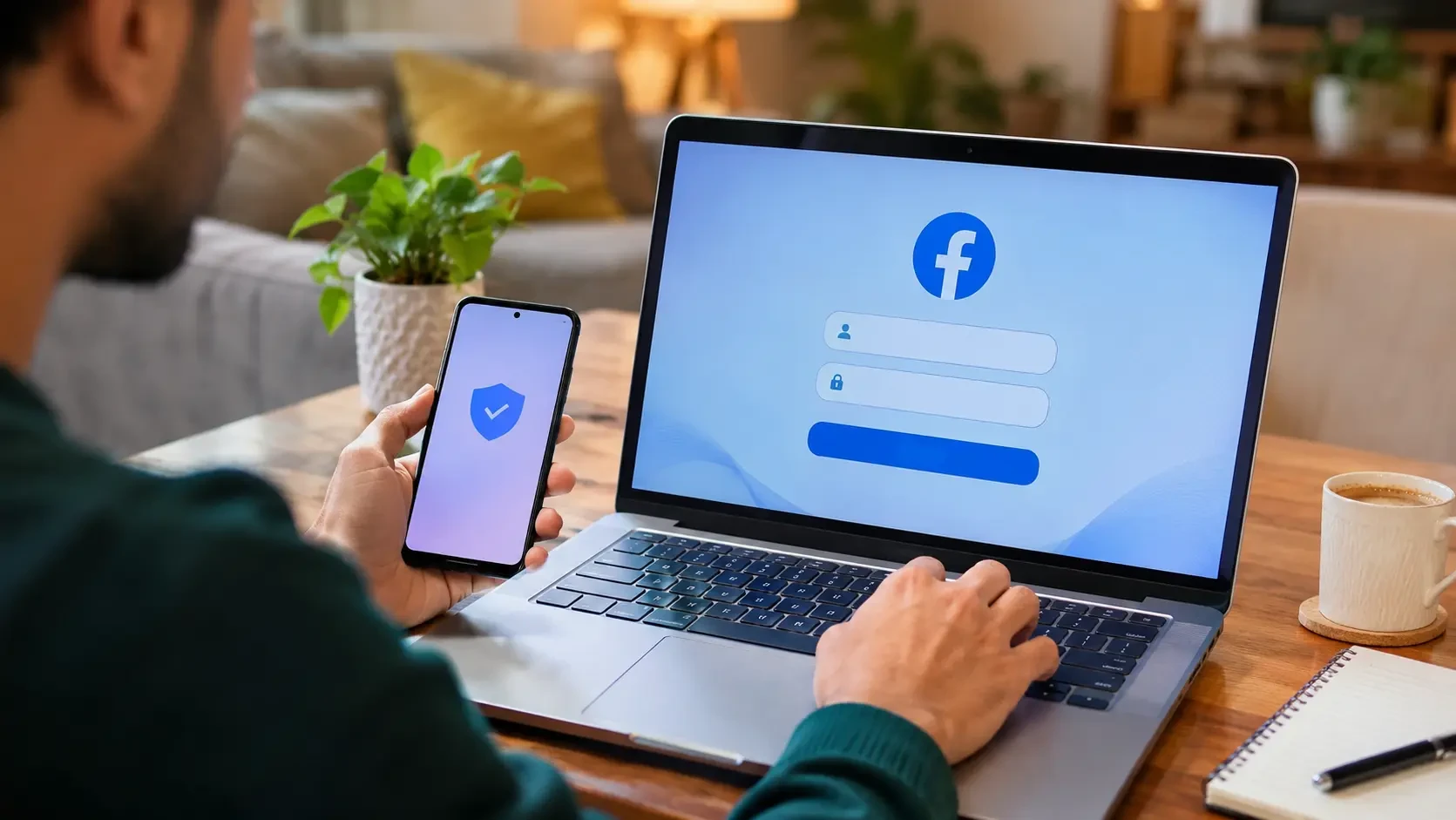
How to Turn On 2FA on Facebook (Phone App)
The steps are almost the same in the Facebook app:
- Tap the menu icon (three lines) and go to Settings & privacy → Settings.
- Tap Accounts Centre → Password and security.
- Under Two-factor authentication, tap your account.
- Choose Authentication app and tap Next.
- Scan the QR code with your authenticator app, or copy the secret key if you are setting it up on the same phone.
- Enter the six-digit code to confirm.
Tip: on the same phone, use the “copy secret key” option instead of scanning — you cannot point a camera at its own screen.
Save Your Recovery Codes
After setup, Facebook gives you recovery codes — one-time codes for signing in if you lose your phone.
- Go back to Password and security → Two-factor authentication.
- Look for Recovery codes and tap Get codes or Show codes.
- Write them down or store them in your password manager — not on your phone.
Also check “Where you’re logged in” and log out any device you do not recognise.
Losing access without recovery codes is one of the hardest account problems to fix. Our guide to lost phone 2FA recovery walks through what to do if it happens.
What Happens When You Sign In With 2FA On
After setup, signing in to Facebook from a new device works like this:
- Enter your email or phone number and password as usual.
- Facebook asks for a login code.
- Open your authenticator app, find the Facebook entry, and type the current six-digit code.
- On your own device, choose “Save browser” or “Remember this device” so Facebook does not ask every time.
Practical notes: codes change every 30 seconds, so if one fails, wait for the next. Set your phone’s clock to automatic — TOTP depends on accurate time. And each code works only once.
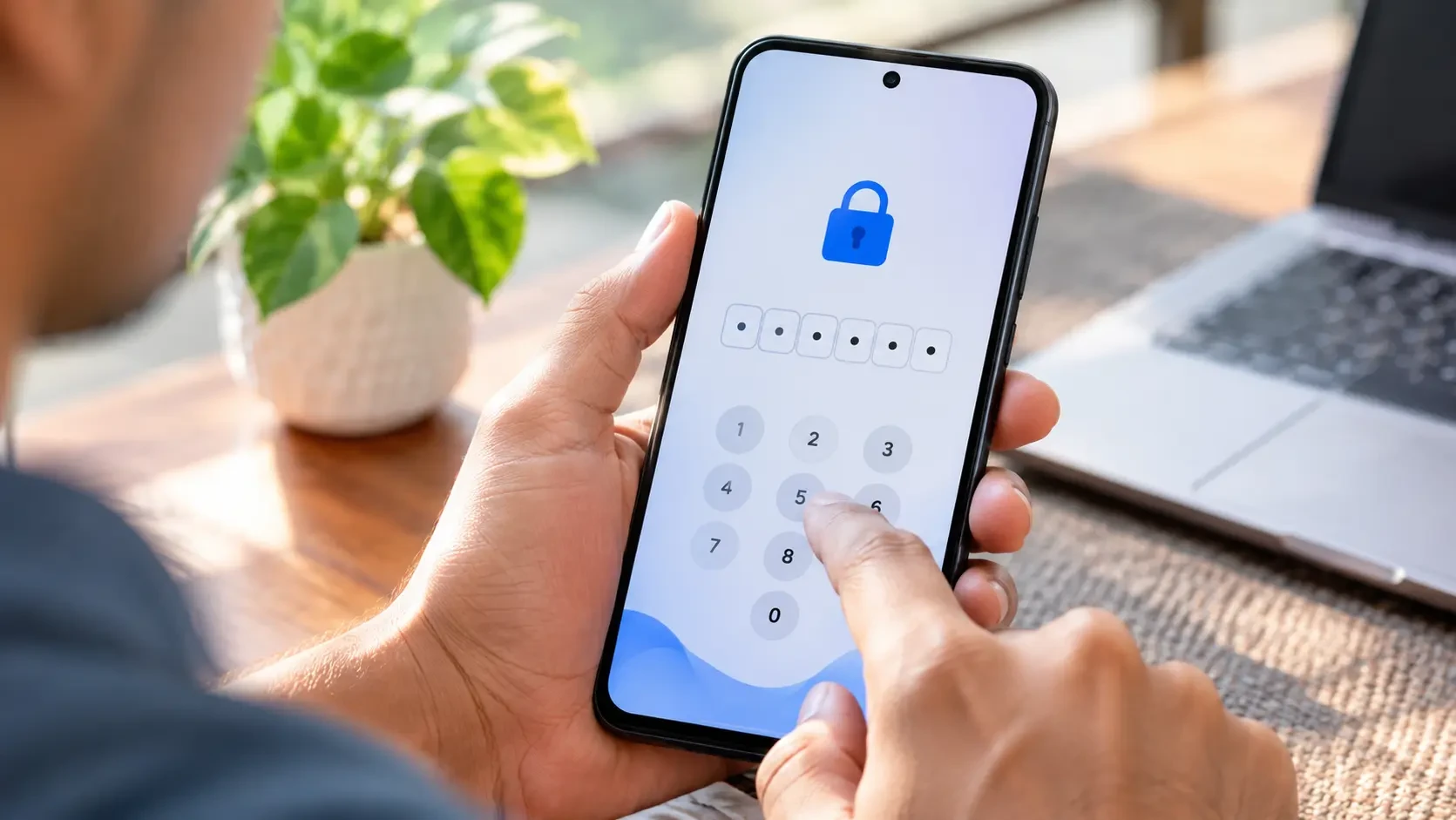
Authenticator App vs SMS on Facebook
Facebook offers three 2FA methods: an authentication app, text message (SMS), and a security key.
- Authentication app (recommended). Works offline, and codes never travel over the network.
- Text message (SMS). Better than no 2FA, but weaker — texts can be intercepted, and SIM swapping can redirect your codes.
- Security key. The strongest option — a small device you tap when signing in.
You can add more than one method: use the app as your main method, SMS as a backup, plus your saved recovery codes.
For the full reasoning, see TOTP vs SMS 2FA: Which One Is Safer?.
Protecting More Than Facebook
The same applies to Instagram (Settings → Accounts Centre → Password and security → Two-factor authentication) and WhatsApp (Settings → Account → Two-step verification, which uses a six-digit PIN). And protect your email the same way — it is the key to resetting your Facebook password. See how to enable 2FA on Google.
Troubleshooting: Common Problems
“My code isn’t working.” Wait for the next code, then check your phone’s time is set to automatic — a clock even a minute off breaks TOTP codes.
“Facebook is asking for a code but I never turned on 2FA.” Use the recovery options on the login screen. If you have no access to the code or your recovery codes, use Facebook’s “Recover your account” flow.
“I got a login code I didn’t ask for.”
Do not enter it anywhere. It means someone has your password and is trying to sign in. Change your password immediately and review your logged-in devices.
“I lost my phone.” Use a recovery code to sign in, then set up 2FA again on your new phone. Without recovery codes, use Facebook’s account recovery flow — it takes longer and requires identity verification.
The Bottom Line
Facebook two-factor authentication takes five minutes to set up and stops the most common way accounts get stolen. Use an authenticator app, save your recovery codes, and do the same for Instagram and your email.
Frequently Asked Questions
Is Facebook two-factor authentication free?
Yes. It is free for every Facebook account, and you can use any authenticator app — including a free browser-based generator like 2Fakey.
Can I use 2Fakey for Facebook 2FA?
Yes. Facebook's setup shows a standard QR code and secret key that any TOTP authenticator can use. Paste the secret key into 2Fakey at https://2facc.com/.
What if I lose access to my authenticator app?
Use a recovery code to sign in, then set up 2FA again. Without recovery codes, Facebook’s account recovery flow can help, but it is slower and requires identity verification.
Protect your Facebook account in five minutes — set up 2FA now, and generate your codes free with 2Fakey at https://2facc.com/.